
Using online shopping receipts to enter competitions
Have you been put off entering purchase-necessary promotions because you shop online, rather than in a supermarket?
For a lot of brand promotions you’ll need a photo of your receipt to prove that you bought a specific product – the photo should clearly show the valid product, supermarket name and the date of purchase. The photo is either uploaded to a website before you enter, or it’s emailed to the promoter after winning to validate your win. For some high value prizes, a winner might have to post off their receipt too!
Taking a photo of a regular printed supermarket till receipt is easy enough to do – just hold your phone camera horizontally over it, ensure you’re in a well-lit place, all edges are visible and the text is clear.
But if you do your shopping online, or via an app, you won’t have a paper receipt that you can photograph. This shouldn’t stop you from entering competitions though, as for most promotions an online receipt is a valid proof of purchase (do check T&Cs though, as a few promotions are for in-store purchases only!).
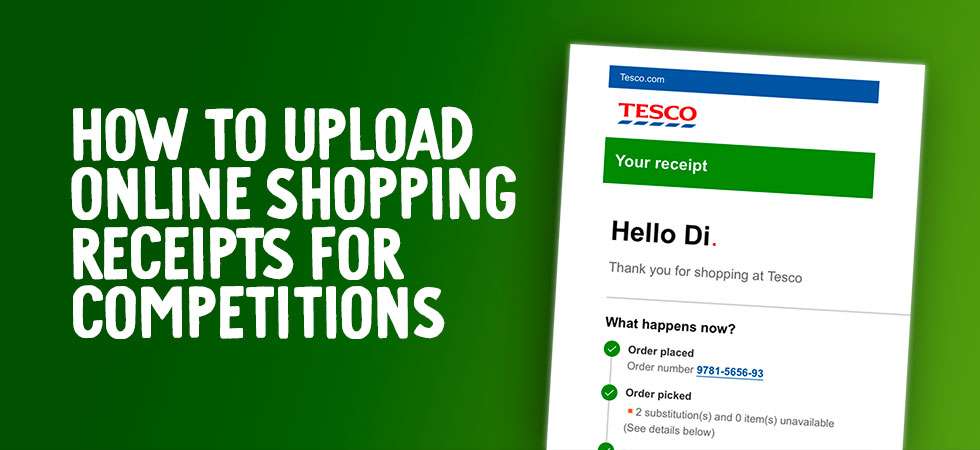
In this guide I’ll be looking at how you can turn your online shopping receipt into a single JPEG image to prove you bought a qualifying product, with the essential information – date, store, and product – clearly visible. Plus I’ve recorded a guide you can watch on YouTube, showing how to convert a Tesco online receipt to a JPEG on an Apple Mac and an iPhone.
What are the different file types?
Most online entry forms will only accept an upload of a single file, which should be a PDF, JPEG or PNG. A lot of entry forms won’t accept a PDF, and there may be a restriction on file size too.
- A PDF is a document format – it’s a single file, usually with multiple pages. Some supermarkets send out online receipts in a PDF format which are added to an email as an ‘attachment’. You may also be able to download the PDF from your account on a supermarket website.
- A PNG is an image format, often a screenshot taken on a computer, tablet or mobile device.
- A JPEG file is the most popular image format for photos.
My receipt photo is too large to upload!
When uploading a JPEG or PNG to a website or sending it via email, your device should give you the option to reduce the size of your photo. It’s a good idea to select this option and try and get your receipt photo down to around 1MB in size. You can also reduce file size by uploading your photo to a website like www.imagesmaller.com, and then downloading a smaller version.
What receipt formats do different supermarkets use?
- Sainsbury’s – receipt is sent as a PDF attached to an email
- Ocado – receipt is sent as a PDF attached to an email
- Morrisons – receipt may be sent as an email OR as a PDF attached to an email
- Tesco (and Tesco Whoosh) – receipt is sent as an email
- ASDA – receipt is sent as an email
- Waitrose – receipt is sent as an email
- Iceland – receipt is sent as an email
For some purchase-necessary promotions you’ll need to send your receipt by email – if you received your order details by email or with an attached PDF, you can simply forward this email on to the promoter (ensure you include attachments, if your receipt was a PDF file).
Taking a screenshot of your receipt
If you only have a short email receipt, you can take a single screenshot of the email or PDF, which will save to your device as a PNG file. On a computer, zoom out to make the text smaller and fit more information on your screen before you take the screenshot. To zoom in and out on a Mac, press the command key and use the +/- buttons. On Windows, use the ctrl key.
Here’s how to take a screenshot:
- iPhone – press Side button + Volume up button at the same time, then quickly release both buttons – the screenshot will save to your Photo Library
- Android – press the Power + Volume Down buttons at the same time. The screenshot will save to your Gallery in a Screenshots folder. On Samsung phones, you can also go to Settings > Advanced Features > Motions and Gestures and enable Palm Swipe to Capture which allows you to take a screenshot by swiping your hand across the screen.
- Mac – press Command + Shift + 4, and drag a box around the area you want to save – the file saves to your desktop.
- Windows – press Windows Key + PrtScn button. If you have no PrtScn button, try Fn + Windows key + Space Bar to take a screenshot. Alternatively, use the search bar at the bottom of the screen to open the Snipping Tool.
Take a scrolling screenshot
For a long receipt on a website or in the body of an email, you may be able to take a ‘full page’ or ‘scrolling screenshot’ of all the email content. On an iPhone the result will be a multiple page PDF, on Android it’s a JPEG.
- iPhone – take a screenshot, tap the preview image and select Full Page. Tap the share icon at the top of the screen and scroll to Save to Files.
- Samsung – take a screenshot then tap the icon with two downward arrows above the preview to save the full page – it will be saved as a JPEG in your screenshots folder
- Other Android devices – take a screenshot then look for a Capture More or Scrolling option on the preview. A copy will be saved to your phone gallery in a screenshots folder.
Some compers take multiple screenshots of their receipt or order and then use an app to combine them into a single ‘collage’ image using a free app like StitchPics. The essential information to include should be the top and bottom of the receipt, and a screenshot from the centre of the receipt showing the relevant product. As long as the shop name, date, total amount, receipt number and qualifying product are visible, that is everything the promoter needs in order to validate a purchase – although personally, I wouldn’t risk this and I always upload a full receipt photo!
Saving a PDF file to your device (for PDF receipts)
If your receipt is in a PDF format (for example, attached to an email or downloaded from the supermarket website), here’s how to save it to your device so you can either upload it to an entry form, or convert it to a JPEG.
- iPhone – open the email, tap and hold on the PDF icon and choose Save to Files
- Android – open up your mail app or access your email via a web browser. Tap on the PDF attachment to open it – it will save into your Files folder.
- Mac – Ctrl-click on the PDF and Save attachment, or double-click to open it and then choose File > Save As.
- Windows – Ctrl-click on the attachment and it should automatically save to your downloads folder
Convert an email to a PDF (for email receipts)
If your receipt has been supplied as email content rather than a PDF attachment, you’ll need to save it into PDF format before you can convert to a JPEG. To do this, you need to ‘print’ it – but not to an actual printer, you’ll print it to a PDF file (see video guide below).
- iPhone – look for the Reply arrow at the bottom of the email and then scroll down to find print. Use your fingers to zoom in on the thumbnails at the bottom of the screen, then tap the share icon and Save to Files – your email will be saved as a PDF file.
- Android – tap … at the top of the email, then scroll down to Print, and change the printer to PDF.
- Mac – press Command + P, then change the destination from a printer to PDF in the drop-down menu.
- Windows – press Ctrl + P, then change to Save As PDF.
Convert a PDF to a JPEG
If you need your receipt as a JPEG (for example, to upload for a Tesco comp) you’ll need to convert your PDF. Lots of apps and tools do this – but most of them convert a multiple page PDF into multiple JPEGs. To create a single long JPEG file of your receipt, I recommend using the Workintool website’s Create Long JPEG tool at https://bit.ly/PDFJPEG (see video guide below).
How to use Workintool:
- Tap the big blue + button, then find the receipt PDF on your device.
- Select a format option (choose ‘twenty in one’ to ensure all pages will be included)
- Once it’s processed, tap the blue Download button
- A banner should pop up at the bottom of the screen to confirm – tap to SAVE
- Your file will be compressed into a ZIP file which you will need to open in your Files/Downloads – you’ll find your new long receipt JPEG (file name will start with 0_, for example 0_0_7)
- So you can find it easily to upload, Save Image to save the new receipt JPEG to your device gallery.
The YouTube video below shows the process of converting your emailed Tesco receipt to a JPEG file ready to upload! Click through to view on YouTube and you can skip to the relevant parts using the links in the caption.
Note: I’m not a regular online shopper, and for this demo video I made the mistake of converting a Tesco order confirmation email instead of the actual receipt email (whoops!) – make sure you don’t do the same!
Uploading an online shopping receipt to a cashback app
With cashback apps, Shopmium will accept a PDF upload, or an upload from your gallery. For a CheckoutSmart and GreenJinn claim you must take a photo in the app – so you will need to print off your online order, or take a photo of it on another device.
Enjoyed this post? You might also like:


Thank you so much for this – I’ve been trying to figure out how to do this for ages!!
Thanks so much for the online receipt converter for Tesco. I wouldn’t have known where to start.